

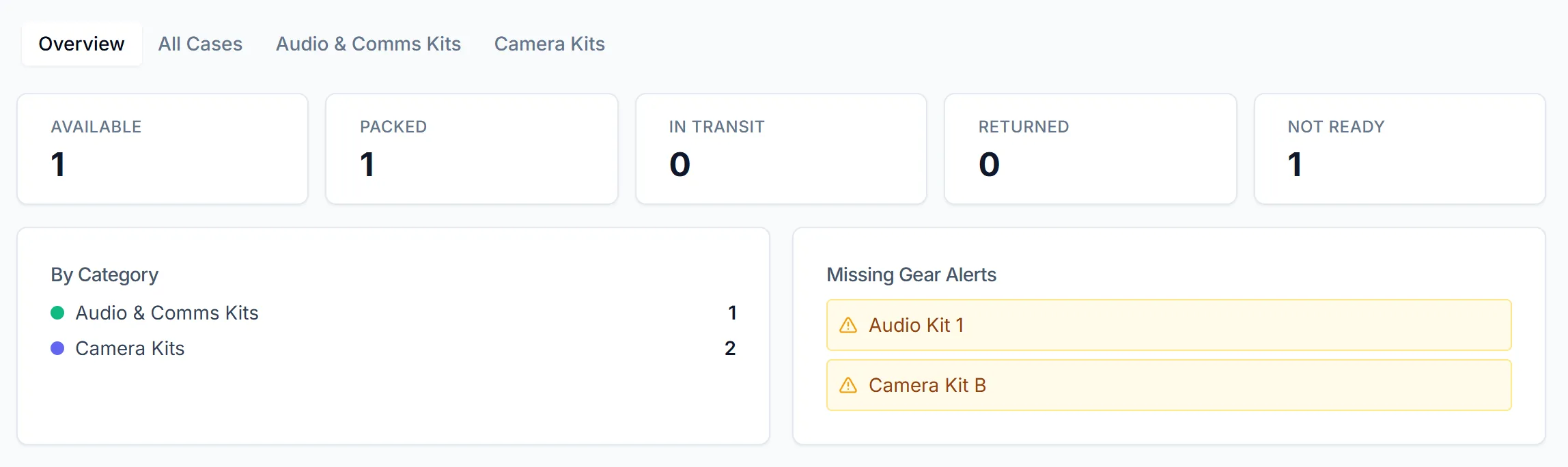
When a case comes back short, or goes out without everything in it, flag it as missing gear. Flagged cases show in the Missing Gear Alerts card on the Cases Overview tab, so nobody forgets to chase the missing item. The Assets Overview tab adds alerts of its own for overdue checkouts and expiring warranties and insurance.
An alert is set by a checkbox on the case. CrewdUp doesn't detect missing gear automatically: nothing in the manifest, tracked assets or shipments sets it for you.
Short version
Open the case, click Edit, tick Missing Gear and click Save. The case appears under Missing Gear Alerts on the Cases Overview until you untick it.
Flag a case as missing gear
You can set the flag in either of two places on the case page.
From the case details:
- Go to Cases and open the case.
- Click Edit in the header.
- Tick Missing Gear.
- Click Save. You'll see Case updated.
From the manifest:
- On the case page, find Manifest / Contents and click Edit.
- Turn on the Missing Gear toggle.
- Click Save.
Use the case's Notes to record what's missing, since the flag itself is only yes or no.
To clear the alert, untick Missing Gear the same way.
Where flagged cases show
- Cases → Overview → Missing Gear Alerts: a list of every flagged case, each linking to the case. When none are flagged, the card reads "All cases are complete".
- Every case list: an amber triangle next to the case name.
- Category tabs: a Missing Gear column.
- The case page: a Missing Gear badge in the header, and "Missing Gear: Yes" in the case details.
Asset alerts on the Assets overview
Go to Assets and open the Overview tab. These cards only appear when there's something in them:
| Card | What it lists |
|---|---|
| Overdue Checkouts | Assets checked out with an expected return date before today, with the asset, the crew member and the due date |
| Warranties Expiring Soon | Warranties that expire between today and 30 days from now |
| Insurance Expiring Soon | Insurance that expires between today and 30 days from now |
The Overview also shows status counts (click one to filter All Assets), Assets by Status, Assets by Category, Checkout Activity with a 30d, 60d or 90d toggle, Most Checked Out (top 5), and Browse by Category.
To get assets onto the overdue list, set an Expected Return Date when you check gear out. To get them onto the expiry lists, add warranty and insurance dates in the asset record.
Things to know
- No emails or notifications. None of these alerts are sent to anyone. You see them only when you open the Overview tabs.
- Already expired doesn't count as expiring soon. A warranty or insurance policy that has already lapsed isn't on the Expiring Soon cards. It shows only as a red icon in the list and a red badge on the asset page.
- Overdue cases aren't listed. Overdue Checkouts covers asset checkouts only. A packing case checkout that's past due doesn't appear anywhere on the Overview.
- The flag stays until someone clears it. Getting the gear back doesn't untick it.
Checklist
- Missing Gear ticked on any case that came back short
- Notes say what's missing
- Overview checked before each shipment
- Flag cleared once the gear is found